Material switcher
Open it live: maverickrender.com/scratchpad/viewer
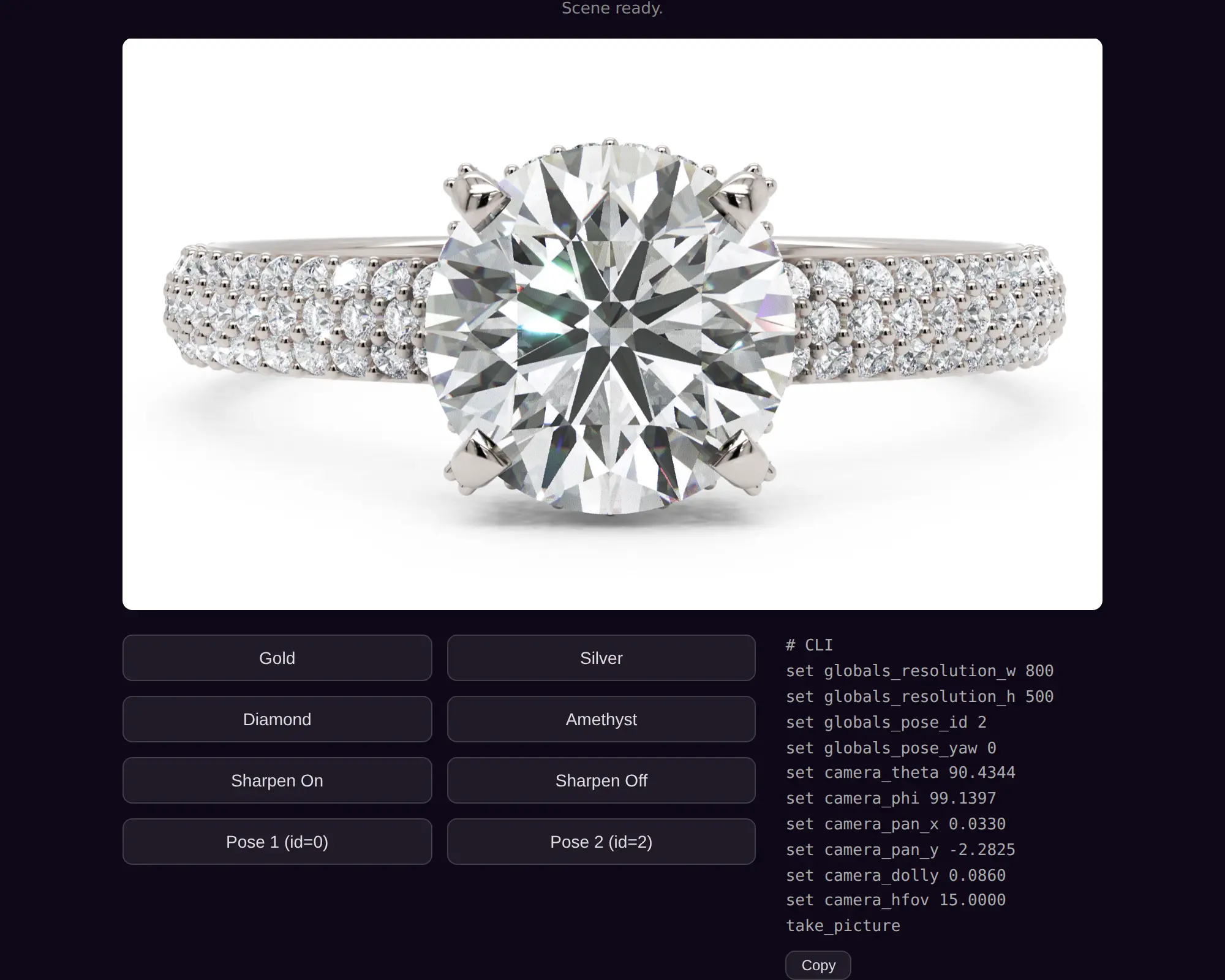
This is a canonical viewer messaging API integration: a scene, a row of buttons, and the messages that connect them. The page is deliberately view-source-friendly, and hence the simple layout and overall look and feel. This walkthrough follows its source top to bottom; you can also read the files directly: index.html, js/app.js, and css/styles.css.
Three ingredients
- The viewer runtime. Four ready-made files, published in the public GitHub repository randomcontrol/webex-viewer:
webex-viewer-module.js(configuration and plumbing),webex-viewer.js(the loader),webex-viewer.wasm(the engine itself), andwebex-viewer.data(its bundled assets). Download them into your site to self-host, as this example does, or serve them from a CDN with no hosting at all (see the CDN embed). - An API key. Created in your dashboard at maverickexcelsior.com/dashboard/api-keys with a Viewer SDK subscription. The key is locked to your domain: the same page on another domain will not verify.
- A scene. A
.webexfile exported from the Excelsior Editor (Export Interactive Scene). Host it next to your page, or anywhere your API key's domain allowlist covers.
The page itself is a canvas plus whatever UI you want. One detail matters: the module script looks for a canvas with the exact id canvas-viewer:
<div id="viewer-container">
  <canvas id="canvas-viewer" oncontextmenu="return false;"></canvas>
</div>
Note
If your server enforces a Content Security Policy, allow https://api.maverickexcelsior.com (the key verification call) in connect-src.
The three-script structure
<!-- 0. Your API key (must be defined before the module script). -->
<script> window.WEBEX_API_KEY = 'ak_xxxxxxxxxxxxxxxx'; </script>

<!-- 1. Module config (version, paths, ...). -->
<script src="js/components/viewer/webex-viewer-module.js"></script>

<!-- 2. App logic (your stuff). -->
<script src="js/app.js"></script>

<!-- 3. Boot the WASM (must match the module's version). -->
<script src="js/components/viewer/webex-viewer-125771.js"></script>
The API key comes first, in a tiny inline script, because the module reads it the moment it loads. From there the stock module script does the plumbing for you: it tells the loader where the .wasm and .data files live, builds the Module object, and defines window.wasm_i:
// A wrong key or an access from a non-verified domain will cause the viewer to blink.
window.WEBEX_API_KEY = window.WEBEX_API_KEY || '';

// Viewer paths: the boot script and the module versions must match.
window.g_webex_basedir = './js/components/viewer/';
window.g_webex_viewer_version_js = 'webex-viewer-125771.js';
Startup values
Your script in the middle only needs two things. First, the startup values:
// Scene to load at boot (relative to this HTML file, or a full URL).
window.Module.json.open_scene = './scenes/scene.webex';
window.Module.json.set_clear_color = 'white';
Listening to the viewer
Second, a listener for the viewer's events. The viewer dispatches CustomEvent('wasm_o') on window; here it drives a one-line status display:
window.addEventListener('wasm_o', function (e) {
  var op = e.detail.op, d0 = e.detail.d0, d1 = e.detail.d1, d2 = e.detail.d2;

  if (op === 'open_scene_starting') { status.textContent = 'Loading scene...'; }
  if (op === 'open_scene_progress') { status.textContent = 'Loading: ' + parseFloat(d0).toFixed(0) + '%'; }
  if (op === 'open_scene_complete') { status.textContent = 'Scene ready.'; }
});
Switching materials
From there, every button is one message. The material buttons call apply_mtl with a layer name and a library material name, both case-sensitive, exactly as they show in the Excelsior Editor:
wasm_i('apply_mtl', 'Metal 01', 'Yellow Gold 10k');
wasm_i('apply_mtl', 'Gem 01', 'Diamond');
Tuning properties and poses
The sharpen and pose buttons are plain property writes:
wasm_i('set_string', '::render_pipeline', 'render_pipeline_sharpen_enable', '1');
wasm_i('set_string', '::render_pipeline', 'render_pipeline_sharpen_strength', '4.0');

wasm_i('set_string', '::globals', 'globals_pose_id', '2');   // 0-based pose preset.
wasm_i('set_string', '::globals', 'globals_pose_yaw', '0');  // Degrees.
Following the live camera
Finally, the panel on the right polls the live camera through the tracker_cam_* virtual properties. Each request is answered with a get_string event, and the example formats the values into a ready-to-paste CLI block, for show. If you're a CLI licensee, you can frame the shot in the browser, copy the block, and drop it into a render script to reproduce the same framing.
setInterval(function () {
  wasm_i('get_string', '::camera', 'tracker_cam_theta');
  wasm_i('get_string', '::camera', 'tracker_cam_phi');
  wasm_i('get_string', '::camera', 'tracker_cam_dolly');
  // ... pan, hfov, pose. Replies arrive as 'get_string' wasm_o events.
}, 100);
Prefer not to host the viewer runtime yourself? The CDN embed example is a simpler version of this example, where the Excelsior Viewer component is served from jsDelivr.
Found a mistake?
We do our best to keep this reference accurate and in step with the product, but mistakes and omissions can slip through, and they are never intentional. If anything here looks wrong, incomplete, or unclear, please contact us and we will gladly fix it.