Visualizing 3D jewelry in Maverick Excelsior
Summary
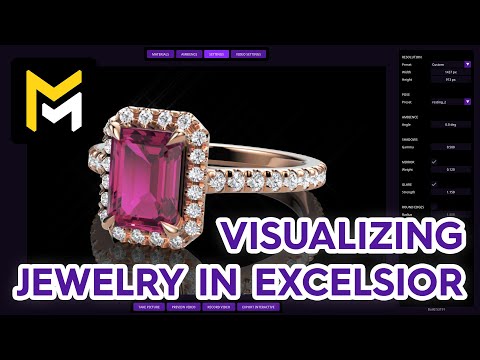
This tutorial introduces users to the Maverick Excelsior software, a tool for visualizing real-time jewelry. It walks through the process of importing 3D models, which must be arranged in layers, and navigating the editor using mouse controls. The video demonstrates how to change materials for both gems and metals from a curated library, adjusting attributes like hue and absorption. It also covers selecting from white or black lighting ambiances to enhance the design and navigating the settings to control resolution, object pose, ambience angle, and shadow appearance. Finally, the tutorial shows how to add reflections and adjust glare, enable round edges for added realism, export the scene, and generate still images and videos of the jewelry design.
F.A.Q.
- What is Maverick Excelsior and what is its purpose? Maverick Excelsior is a visualization tool designed specifically for real-time jewelry rendering. Its purpose is to allow users to import 3D jewelry models (specifically 3DM files arranged in layers as covered in a previous tutorial), apply high-quality materials, adjust lighting and other settings, and then quickly generate photorealistic images, videos, and interactive exports of their designs. The tool emphasizes maintaining photo realism while providing adjustable parameters.
- How do users import a 3DM model into the Excelsior Editor? Users can import their 3DM file into the Excelsior Editor by either dragging and dropping the file into the main area of the editor or by using the dedicated import button. It is crucial that the 3DM model is arranged in layers beforehand for proper material application.
- How can users navigate within the Excelsior Editor? Navigation within the Excelsior Editor is straightforward. Users can orbit the view using the left mouse button, pan the view using the right mouse button, and zoom in or out using the mouse wheel. The tool is designed for smooth navigation while maintaining a high-quality visual representation.
- How are materials managed and customized in Excelsior? Excelsior automatically applies default materials to each layer of the imported 3DM model. Users can then access the materials section to see which materials are assigned to each layer. By clicking "choose another material," users can select from a curated library of calibrated gem and metal materials. Within each material's attributes, users can adjust properties like hue, absorption (for gems), brightness, and saturation (for metals) within physically plausible limits to fine-tune the appearance while maintaining realism.
- How do the different ambiance options affect the jewelry visualization? Excelsior offers a selection of white and black ambiances in the ambiances section. White ambiances are described as neutral and make the jewelry design stand out. Black ambiances provide a more sophisticated look, enhancing the shine of metals and gems. Users can simply click on an ambiance to instantly change the lighting of the scene and observe the real-time impact on reflections and refractions. Experimenting with different ambiances is recommended to find the one that best enhances a specific jewelry design.
- What are some key settings available in Excelsior to enhance the visual output? The settings section in Excelsior provides several key options for enhancing the visual output. The resolution can be adjusted using presets or custom values. The pose of a ring model can be oriented using "resting one" or "resting two" options. The ambience angle allows for repositioning reflections and refractions, though keeping it near zero is recommended for models in canonical positions. Shadow gamma controls the darkness or lightness of shadows, and shadows can be removed entirely to make a piece appear floating. The mirror rollup allows for activating and adjusting the intensity of floor reflection. The glare feature adds stunning glints to gemstones with adjustable strength. The round edges parameter automatically bevels sharp edges and corners of the geometry to increase realism, with an adjustable radius.
- How can users save and restore their work in Excelsior? Users can save the current state of their scene in Excelsior using the "export interactive" button. This downloads a WebEx file with the current date and time. To restore a previous session, users can simply drag and drop this WebEx file directly back into the editor.
- What are the different output formats available in Excelsior? Excelsior allows users to generate various output formats from their jewelry models. They can create instantaneous still images by choosing a viewpoint and clicking the "take picture" button. The tool also supports creating videos, with options to configure animation speed, motion type (constant, eased in/out, boomerang), flip direction, and rotation angle. Additionally, the "export interactive" feature allows users to embed interactive jewelry on websites or share interactive links, though this function is covered in a subsequent tutorial.