Preparing your jewelry 3DM Rhino model
Summary
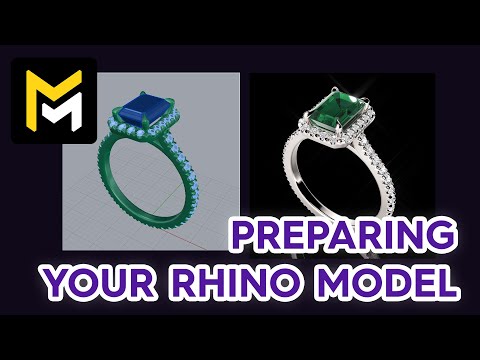
This tutorial outlines how to prepare a jewelry model in Rhino for import into Maverick Excelsior, focusing on necessary steps to ensure a smooth workflow. Key requirements include organizing model components into clearly named layers (e.g., using "gem," "metal," or "pearl" in the layer name) and positioning the model vertically. The video also advises centering the model for convenience. Finally, it demonstrates how to import the properly saved 3DM file into Maverick Excelsior and adjust materials and initial posing based on the layered structure established in Rhino.
F.A.Q.
- How should I organize my Rhino model for import into Maverick Excelsior? You should organize your Rhino model using layers. Each layer will be used to assign a different material within the Excelsior Editor. Specifically, gemstone layers must have the word "gem" in their name, metal layers must include the word "metal", and if your model contains pearls, their layer names should feature the word "pearl".
- What is the required orientation for the model in Rhino before importing into Maverick Excelsior? The model must be presented in a vertical position. While Excelsior offers a feature to adjust the model's pose later, the initial import requires a vertical orientation.
- Is it necessary to center the model in the Rhino scene? While not mandatory, it is considered good practice to center the model. You can do this by selecting the geometry and setting its position to zero, then using the zoom to extents tool.
- How should I save the Rhino file (
.3dm) for import into Maverick Excelsior? When saving the.3dmfile from Rhino, use the "save" or "save as" option from the file menu. Crucially, do not enable the "save small" option, as this will result in Excelsior importing an empty file. - What happens after importing the
.3dmmodel into the Maverick Excelsior Editor? Once the model is imported, the editor's right panel will display the model's materials organized by layers. Excelsior will automatically initialize gemstone layers with a default Diamond material and metal layers with a default white gold material. - Can I change the materials assigned to the layers in Maverick Excelsior? Yes, you can easily change the materials assigned to the layers. For example, you can change a Diamond material to an emerald and a white gold metal to another type of metal.
- Does Maverick Excelsior offer features to adjust the model's pose after import? Yes, Maverick Excelsior provides an automatic pose system. For instance, in the settings, under the "pose" rollup, you can choose options like "resting two" which will lay the model horizontally.
- Are there resources available for more detailed information on preparing Rhino models and configuring scenes in Maverick Excelsior? Yes, these steps are described in detail in the documentation area on the Excelsior website. Furthermore, future tutorials will cover scene configuration steps, including the automatic pose system, in more detail.