Backplate panel

Overview
In the BACKPLATE panel you can set a background color for your scene.
In the same way as cameras, you can save your own colors. Saved colors will appear below the stock palette.
Note
Saved colors will be stored in your user account and will appear in the list even across sessions.
You can delete unwanted saved colors dropping them to the trashcan icon at the bottom.
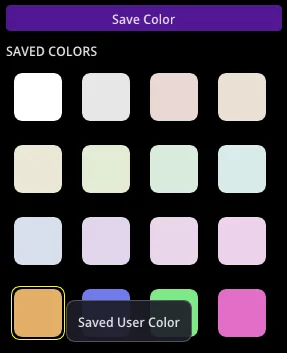
This is what the stock colors provided look like on a sample ring:

Color
Click the Color chip to open the color picker.
Note
Pastel tones often look best.
Reflect color
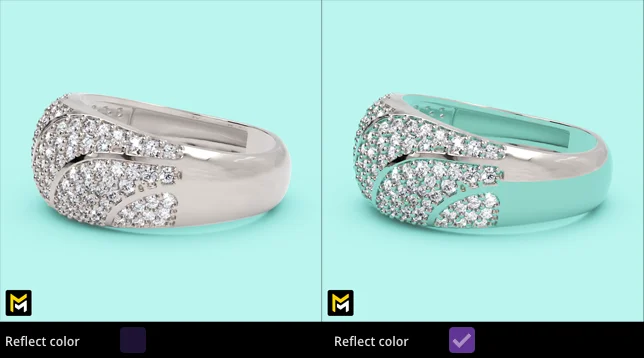
Toggle Reflect color to let the backplate cast a tint from underneath your metals (more realistic) or not (stay pure, marketing style).

YouTube tutorial
In this video tutorial you will learn how to use the Maverick Excelsior Backplate panel.

Available also in Spanish: