Embedding an iframe
Warning
Online model publishing is only available to PRO subscription plan users.
Overview
It is recommended that you read the previous section on how to publish interactive models online via <iframe>, because the instructions here will be similar.
This page discusses Shopify in particular, but the <iframe> method used here is universal and should work similarly in other platforms such as WooCommerce or directly in a self-hosted webshop.
Shopify
- Host your
.webexfile on your FTP in a public folder. -
Build your
<iframe>URL by concatenating your file URL after this prefix:https://iframe.maverickexcelsior.com/?url= -
For example, if your file is at:
https://yourdomain.com/your-model.webex -
Then your full
<iframe>URL is:https://iframe.maverickexcelsior.com/?url=https://yourdomain.com/your-model.webex -
Embed the
<iframe>in your Shopify product description:<iframe src="https://iframe.maverickexcelsior.com/?url=https://yourdomain.com/your-model.webex" style="width: 100%; height: 512px" frameborder="0"> </iframe>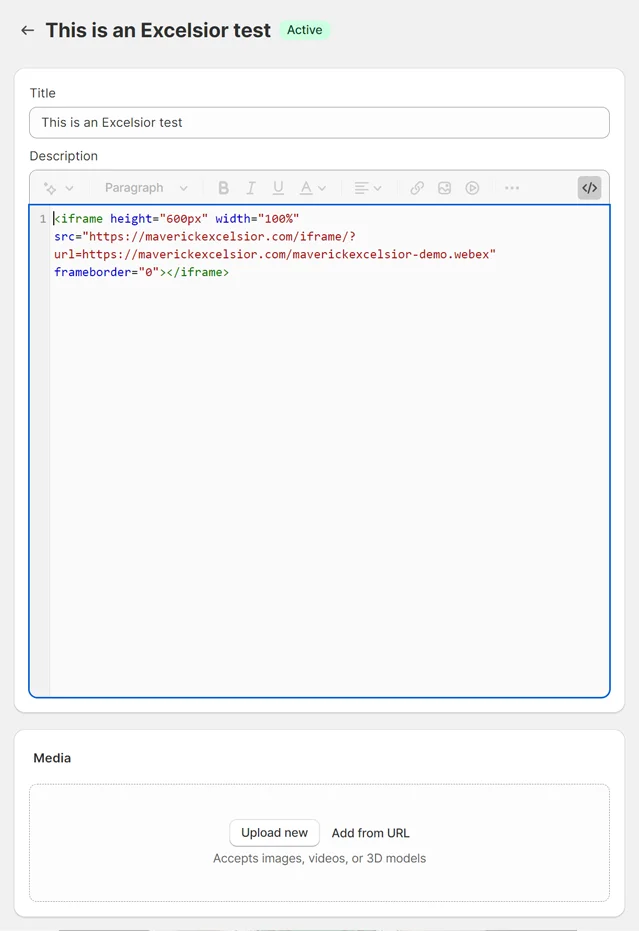
-
After clicking the
< />button to accept the embed, your description box will look like this: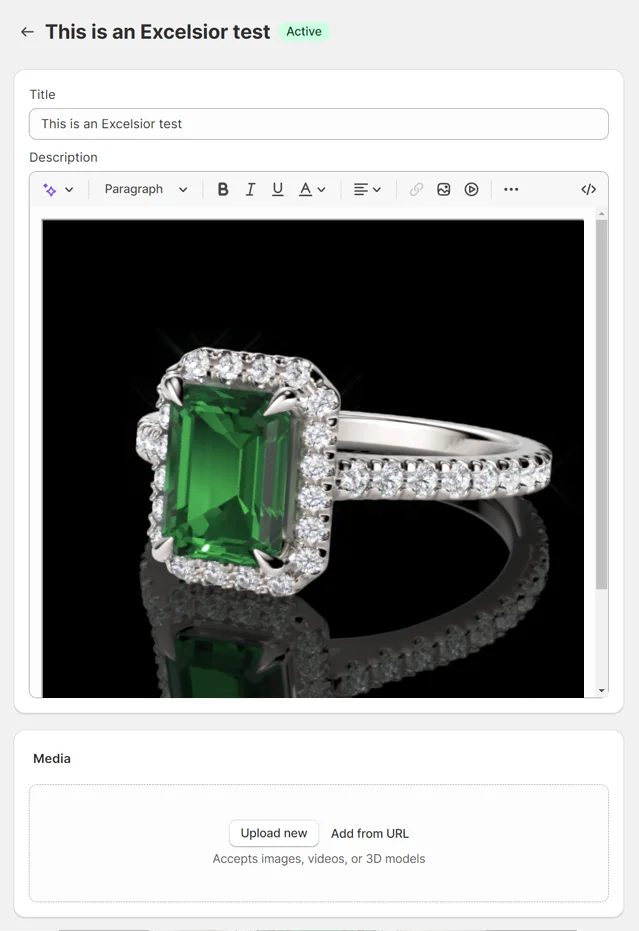
-
On the live product page, the interactive model should appear in the description: